WhatsApp Business Number Restricted? A Recovery Checklist
Restricted, disabled or flagged WhatsApp numbers each need a different response. Work through what happened, how to appeal, and how to avoid a second strike.
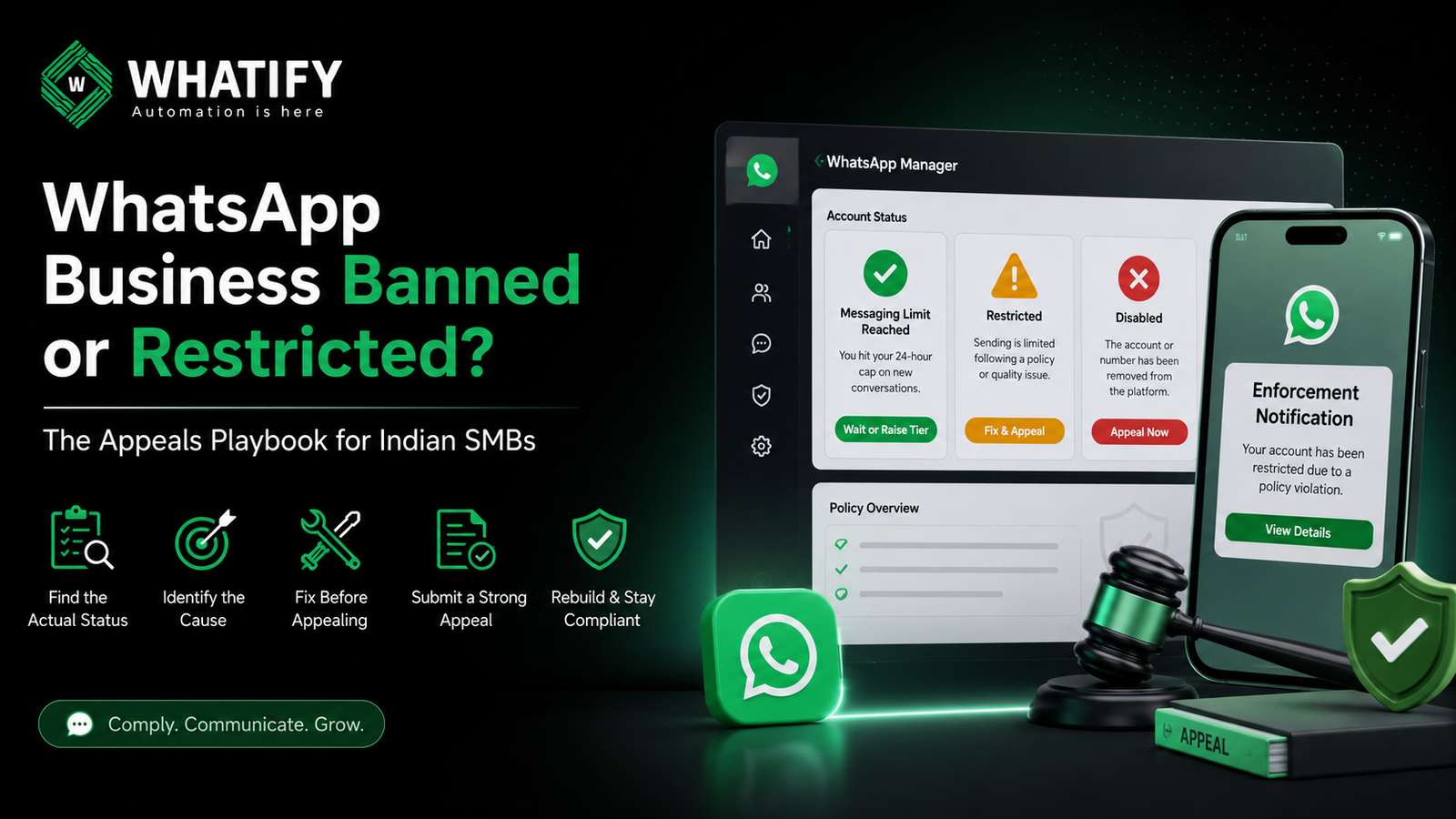
If your business number has stopped sending, the first task is identifying which of three different situations you are in. They look similar in a dashboard and require different responses.
|
State |
What it means |
What to do |
|
Messaging limit reached |
You hit your 24-hour cap on new conversations |
Nothing is wrong — wait for the window or raise your tier |
|
Restricted |
Sending is limited following a policy or quality issue |
Fix the cause, then appeal if warranted |
|
Disabled |
The account or number has been removed from the platform |
Appeal through Business Manager |
Before assuming a ban, rule out the mundane. A reached messaging limit, an expired payment method or a zero wallet balance all stop sending and are not enforcement actions. Our guide to messaging limits and tiers covers the first case.
Step 1: Find the actual status
Open WhatsApp Manager in Meta Business Manager and check the status against your phone number and your WhatsApp Business Account. Meta shows the account state and, where applicable, the policy area involved. Also check the email associated with the Business Manager — enforcement notices go there and are easy to miss.
Write down exactly what it says. Vague self-diagnosis leads to appeals that address the wrong thing.
Step 2: Identify the likely cause
Enforcement rarely arrives without a trigger. The common ones:
Unofficial sending tools. Software that automates the consumer WhatsApp app or WhatsApp Business app — rather than using the official API — violates WhatsApp's terms. This is the most frequent cause of bans among Indian SMBs, and the risk is not reduced by sending slowly.
Messaging people who never opted in. Purchased lists, scraped numbers and contacts imported from unrelated sources generate blocks quickly.
A sharp rise in blocks or spam reports. Often follows an aggressive campaign to a cold or stale list.
Prohibited content. Restricted product categories, misleading claims, or requests for sensitive data.
Repeated template violations. A pattern of rejected or paused templates signals a systemic problem.
Step 3: Fix the cause before appealing
An appeal submitted while the violating behaviour continues is unlikely to succeed. Before you file:
· Stop any unofficial tool immediately and completely.
· Pause all marketing campaigns.
· Remove contacts you cannot evidence consent for.
· Pause or delete templates that were flagged.
· Document what changed — you will reference it in the appeal.
Step 4: Submit the appeal
Appeals are submitted through Meta Business Manager, typically via the Account Quality or support section where the enforcement notice appears. Meta's process and entry points change periodically, so follow the link in the notice itself rather than a remembered URL.
A useful appeal is short, factual and specific:
1. State what happened in one or two sentences, without argument.
2. Acknowledge the likely cause if you know it. Denying an obvious violation weakens the appeal.
3. Describe the concrete remediation — what you stopped, what you removed, what you changed.
4. Describe the prevention — the process now in place to prevent recurrence.
5. Attach evidence where relevant: your opt-in mechanism, a consent record sample, your new sending policy.
Avoid emotional appeals, revenue-impact pleas and repeated resubmissions. Multiple identical appeals do not improve the outcome.
Step 5: Set realistic expectations
Some appeals succeed. Some do not. Outcomes depend on the severity and history of the violation, and Meta does not guarantee reinstatement or publish decision timelines. Repeat violations are treated more seriously than a first occurrence.
Plan for both outcomes. If the number is critical to operations, have a communication path to customers that does not depend on it while the appeal is pending.
Step 6: Rebuild on a foundation that will not repeat this
If you were using an unofficial tool, the durable fix is moving to the official WhatsApp Business API through an authorised provider. That is not a marketing point — the API is the only sanctioned way to send at scale, and it comes with template review, quality visibility and messaging limits that make enforcement predictable rather than sudden. Our comparison of bulk WhatsApp senders for Indian SMBs explains the difference between official and unofficial tools.
Then rebuild the practices that keep an account healthy:
· Traceable opt-in for every contact, with a record of when and how consent was given. This is also a legal direction of travel in India — see our guide to DPDP consent records.
· Segmented sending rather than full-list broadcasts.
· Frequency caps per contact.
· Weekly quality monitoring so problems surface before enforcement does. Our quality rating recovery playbook covers the warning signs.
· A visible opt-out in marketing messages.
Whatify runs on the official API with template validation and quality visibility built in — start a 14-day free trial if you are rebuilding on compliant infrastructure.
Check Meta's current policy
Enforcement criteria and appeal routes are defined by Meta and change over time. Review the current WhatsApp Business Messaging Policy and the guidance in your enforcement notice before submitting anything.
EXTERNAL SOURCES
1. Meta — WhatsApp Business Messaging Policy: prohibited practices, enforcement, and the basis for restrictions. https://business.whatsapp.com/policy
2. Meta — Account quality and enforcement, Business Help Centre: where enforcement notices appear and how appeals are raised. https://www.facebook.com/business/help
3. Meta — Messaging limits documentation: distinguishing a reached limit from an enforcement action. https://developers.facebook.com/docs/whatsapp/messaging-limits/
Frequently Asked Questions
The most common causes are using unofficial automation tools instead of the official API, messaging contacts who never opted in, a sharp rise in blocks or spam reports after an aggressive campaign, prohibited content, or a repeated pattern of template violations.
Appeals are submitted through Meta Business Manager, usually via the Account Quality or support section where the enforcement notice appears. Fix the underlying cause first, then submit a short factual appeal describing what happened, what you have remediated, and what prevents recurrence.
Meta does not publish a guaranteed timeline, and outcomes vary with the severity and history of the violation. Submit once with complete information rather than filing repeatedly, and plan an alternative customer communication channel while the appeal is pending.
These are different situations that look similar. A reached messaging limit stops new conversations until the rolling 24-hour window clears and is not an enforcement action. Check WhatsApp Manager for the account status — it will distinguish a limit from a restriction or a disabled account.
Registering a new number to continue the same non-compliant behaviour is likely to result in the same outcome, and evasion can worsen your standing. If you move to a new number, move to compliant practices at the same time — official API access, traceable opt-in and segmented sending.
Tools that automate the consumer or Business app rather than using the official API violate WhatsApp's terms, and this is a frequent cause of enforcement against Indian SMBs. Sending slowly through such a tool does not remove the risk, because the violation is the method, not the volume.
Ready to automate your WhatsApp marketing?
Start your 14-day free trial today. No credit card required.
Start Free Trial